No Sirve La Camara De Mi Celular

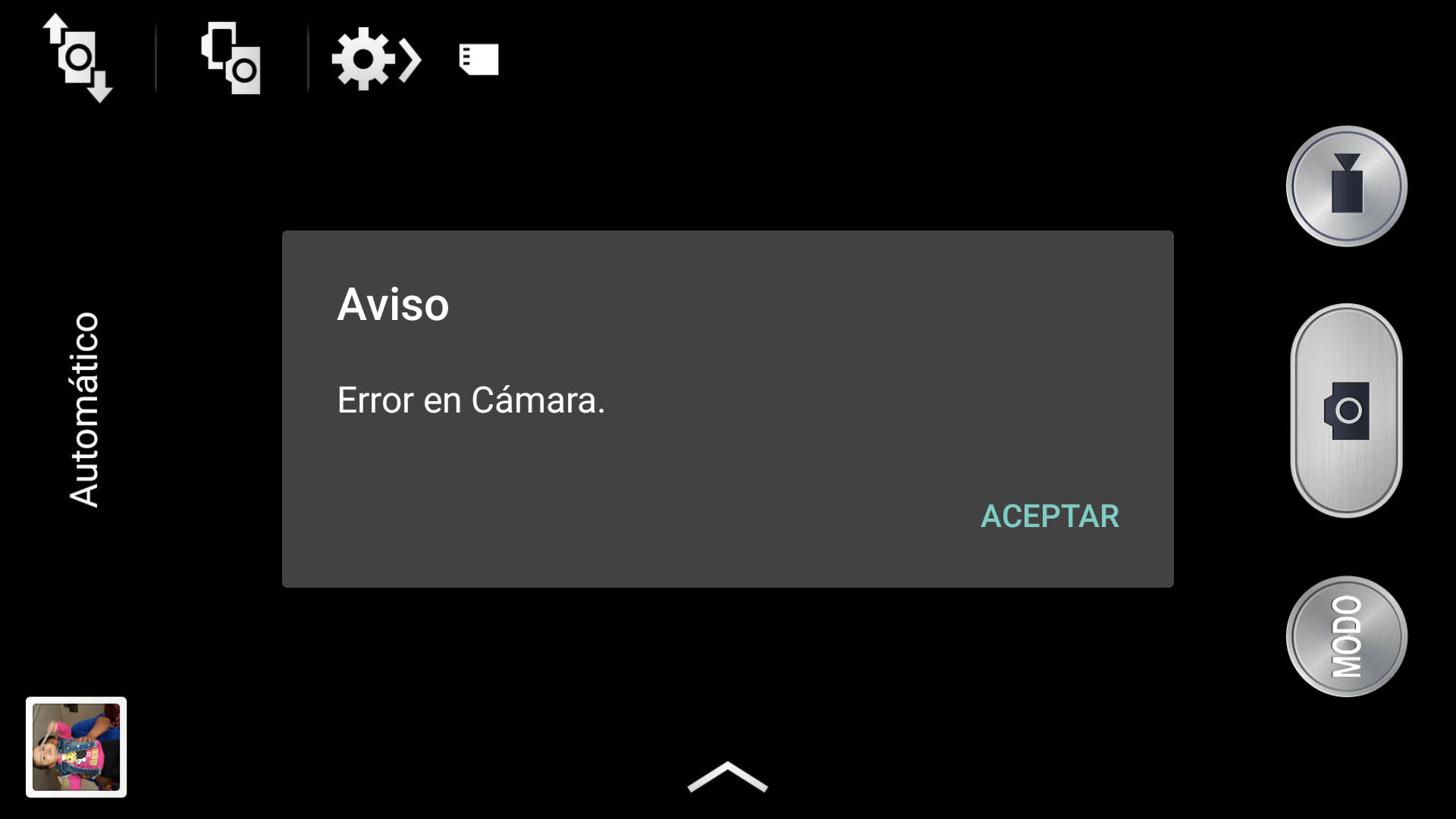
"No sirve la cámara de mi celular" – This common lament translates to "My phone's camera isn't working." It means your phone camera isn't functioning as expected: the app might crash, the image might be blurry, or it might simply refuse to open. Cameras are vital for capturing memories, scanning documents, and video calls, so a malfunctioning one can be incredibly frustrating.
Troubleshooting Your Camera: A Step-by-Step Guide
Here's a phased approach to fixing your phone's camera issues:
-
Phase 1: Basic Checks
- Restart Your Phone: This is the classic tech support advice for a reason. It often resolves temporary software glitches. Power it completely off, wait a few seconds, and then turn it back on.
- Clean the Lens: Smudges and dirt can dramatically affect image quality. Use a microfiber cloth to gently wipe the lens. Sometimes this is the simplest solution!
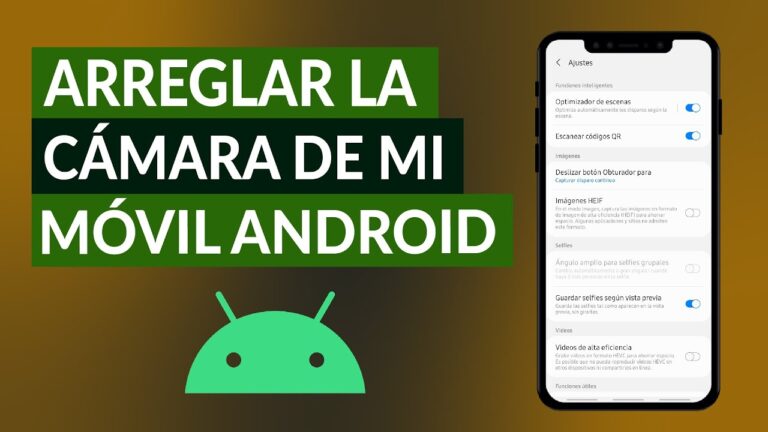
- Check App Permissions: Make sure the camera app has the necessary permissions. Go to your phone's settings, find "Apps," locate the camera app, and ensure it has permission to access the camera and storage.
-
Phase 2: Software Solutions
- Clear Cache and Data: Go to the camera app's settings (as described above) and clear both the cache and data. Note: Clearing data might reset some camera settings, so you'll need to reconfigure them. This step is crucial for resolving software glitches.
- Update the App: Ensure your camera app (and your phone's operating system) is up to date. Outdated software can cause compatibility issues. Check the Google Play Store (Android) or App Store (iOS).
- Try a Different Camera App: Download another camera app from the app store to see if the issue persists. If the other app works, the problem likely lies with the original app.
-
Phase 3: Advanced Troubleshooting (If Needed)
- Check for Third-Party App Conflicts: Sometimes, other apps can interfere with the camera. Try booting your phone into safe mode (the method varies by phone model; search online for instructions specific to your device). In safe mode, only essential apps run. If the camera works in safe mode, a recently installed app is likely the culprit.
- Factory Reset (Last Resort): This will erase all data on your phone, so back up everything important first! A factory reset reverts your phone to its original state, often resolving persistent software issues. This is a drastic step but can be necessary.
If none of these steps work, your phone may have a hardware problem. It's best to contact a qualified repair technician or the phone's manufacturer for assistance. Good luck!